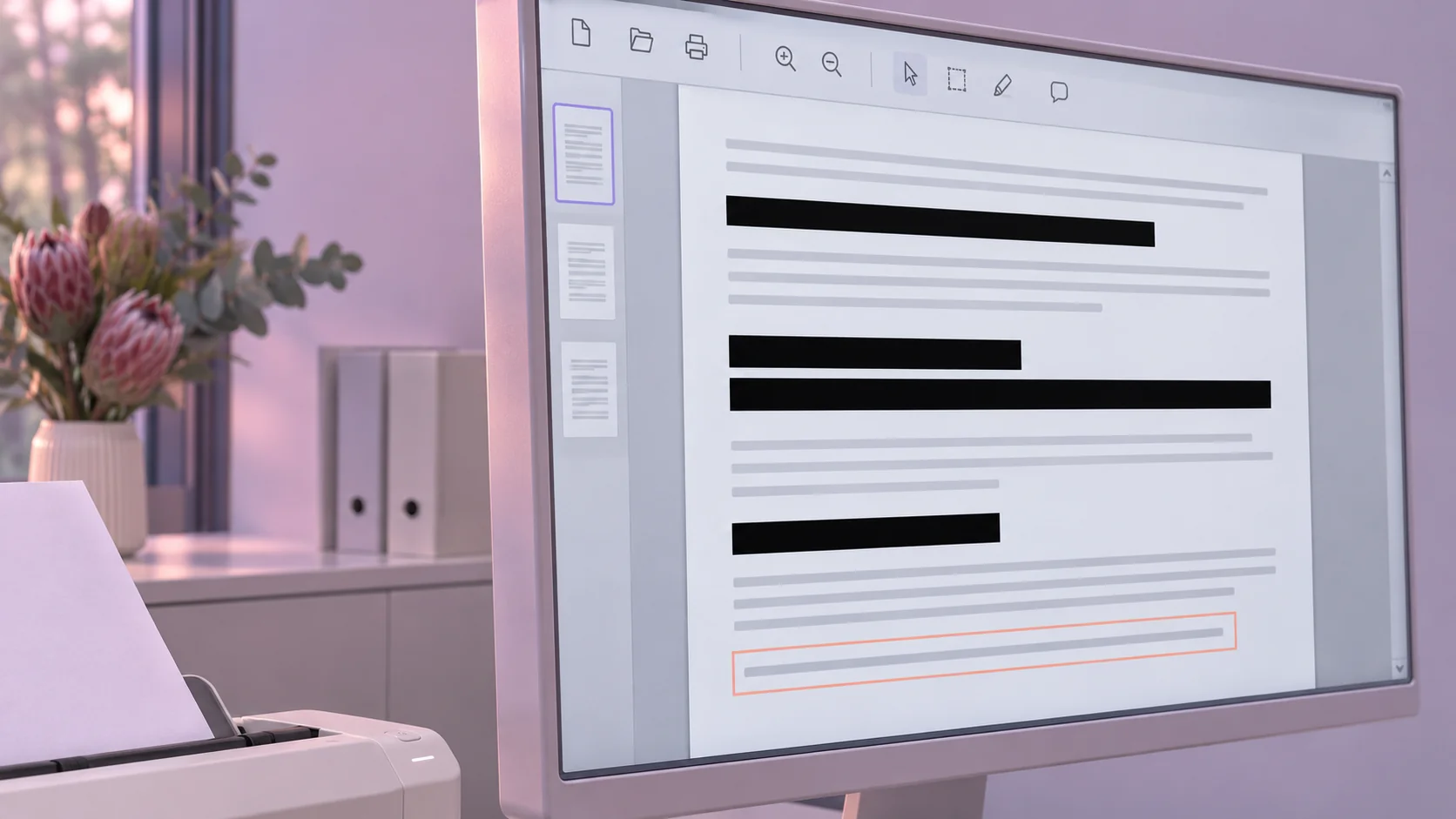
Imagine a Sydney insurance broker preparing a claim file to share with an external assessor. The AI redaction tool puts black bars over the obvious names and policy numbers. A reviewer sees a clean-looking preview and moves on. But a handwritten phone number on a scanned page was never picked up, and a note in the PDF still contains a customer address. Neither problem shows up in the tidy first-page preview.
That hypothetical illustrates two different checks. Did the tool find the information that should not leave the business? And did the export remove it from the file the recipient gets? You need both answers before you can rely on the result.
Where AI redaction can miss sensitive details
In one common design, the software reads the existing text in a digital PDF and uses optical character recognition (OCR) to turn scanned pages into text. A detection model or a set of rules then flags items such as names and account numbers. Each step has a different failure mode. Faint handwriting may not become usable text at all. A clearly recognised number might still be missed if the model cannot tell that it identifies a customer in that particular form.
The business consequence depends on who gets the file and why. An assessor might legitimately need photos and a description of damage, but not an unrelated party’s phone number from an appended email. If the tool has been set to look only for names and policy numbers, a flawless result on those fields says nothing about the appended email. Decide what the recipient needs before you decide what the system should flag.
A black bar doesn’t prove the file is clean
A preview shows what the software draws on screen. It might be a proposed edit or a shape laid over content. Applied redaction is different: it removes the selected content from the released copy. Sanitisation is a separate check for hidden information such as comments and metadata. Adobe’s documentation distinguishes applying redactions from choosing to remove hidden information. Don’t assume every tool handles both in the same step.
Check the actual exported PDF, not a screenshot of the preview. Open it independently, review scanned pages and attachments, and check extracted text and relevant hidden fields using an approved document tool. In testing, use fictional identifiers planted in known locations. A search for a single term is useful evidence on a test file, but a clean search alone doesn’t rule out readable private details inside an image.
Make the release decision explicit
- Test the awkward files. Use synthetic examples covering poor scans, handwritten notes, tables, comments and appended pages. Track missed sensitive details separately from harmless text flagged in error. That distinction tells you whether the workflow risks disclosure or is simply making reviewers do extra work.
- Keep a person in charge of exceptions. Route unreadable or unfamiliar pages to the document owner for manual review. Keep the approved export separate from the working copy, and send only the checked file. If you automate delivery, require a recorded approval against that exact export rather than triggering delivery when the AI finishes.
- Check what leaves your systems before redaction. If detection happens in the cloud, the service may receive the original file, not the cleaned one. The OAIC recommends against entering personal information into publicly available generative AI tools. Before using a business tool on real files, check processing, access and retention terms and have the appropriate privacy owner sign off.
Start with one document type where your team knows what should and shouldn’t be shared. Assign someone to own the release rules, document what passed and retest if the OCR engine, model or export settings change. The goal isn’t to count how many bars the tool adds. It’s to know what information is actually in the copy you send.
If you’re redesigning an approval or document-routing process, see Xpansion’s AI and intelligent automation services for ways to keep a human approval step in the workflow.